
During our AI training for businesses and organizations, as well as in our own operations, we've noticed that the recent development of AI, especially Gemini and NotebookLM, allows for the rapid creation of excellent presentations in both content and presentation. However, we often lack mastery in designing presentations according to our company's or organization's brand identity standards. Therefore, we have researched, experimented, and will share with you some methods for using Gemini to create presentation files based on brand identity templates.
How to use Gemini Canvas
Step 1: Use Gemini and start by selecting the Canvas feature.
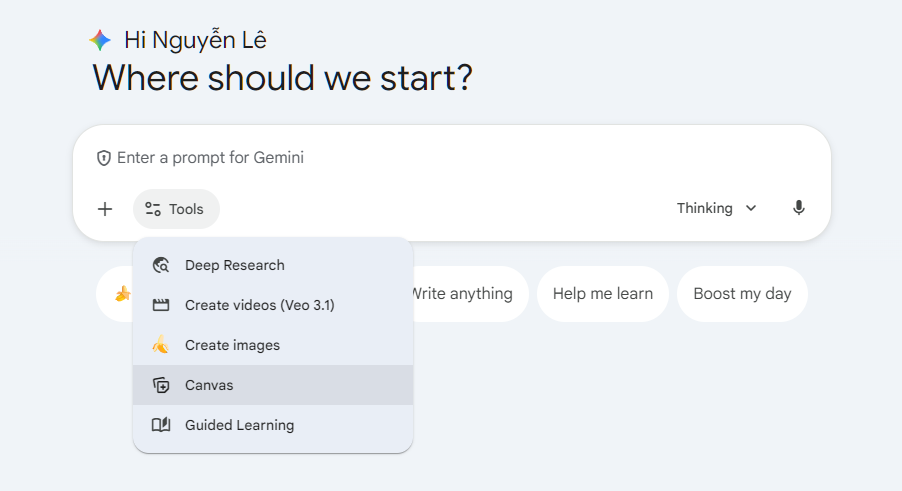
Step 2: Ask Gemini to create the outline for the presentation file. You can refer to the following example prompt:
As a presentation design expert in market research, let's create a text-based script of the slides to be presented to the company's board of directors at a meeting to report on a proposal to open a new market in the Middle East, based on the content in the attached file. Write each slide clearly, for example:
- Slide 1: Title: Overview, Content: General introduction to the market..., Image: Luxury hotel in the Middle East,
- Slide 2: Title: Culture. Content: Middle Eastern people respect traditional culture..., Diagram: 3 core cultural elements.
In this first step, we will only create the text-based script, not the slide deck.
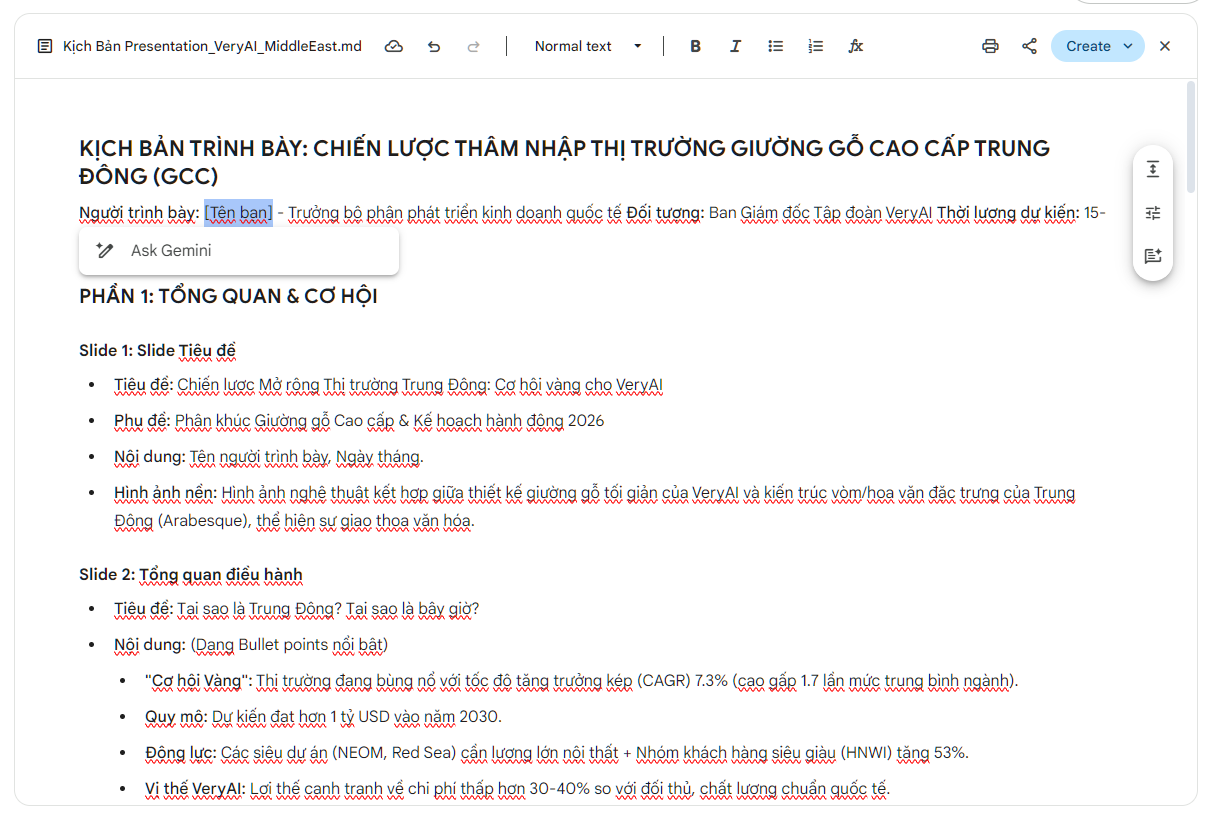
***Note: Apply advanced prompt writing techniques such as RISE and Few-shot. After initially creating the outline, continue editing directly in Canvas to ensure the presentation content accurately reflects your preferences.
Step 3: Attach slide images designed according to your brand identity template and ask Gemini to remember the designs. You can refer to the example prompt I used, and only upload about 3 sample images with clear designs that accurately reflect your brand identity to avoid confusing Gemini with too many elements during analysis.
The attached images are sample slides based on the company's template. Please analyze and remember the design style, logo, fonts, font sizes, colors, layout, background, header, footer, etc., and let me know if you fully understand the company's template.
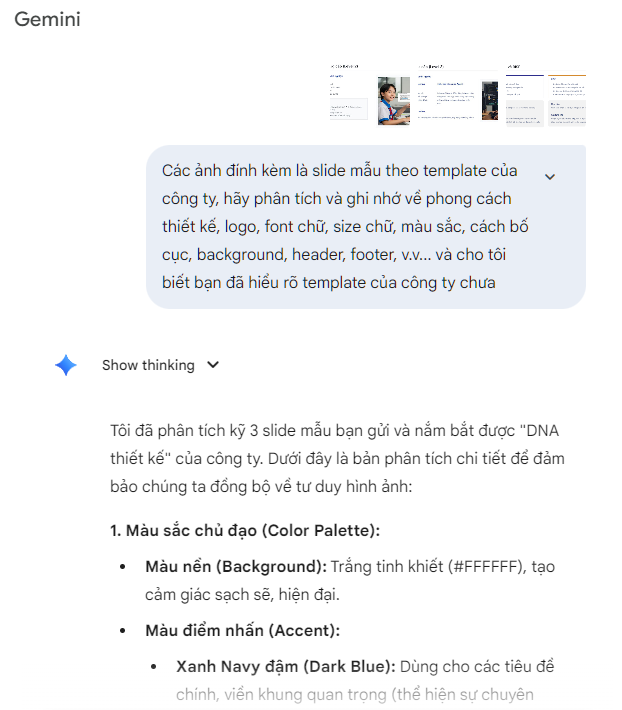
***Note: If Gemini's analysis and identification are incorrect, please correct them and ask them to remember the information. In my example, Gemini identified the colors and design style very accurately, but the font was incorrect, so I requested that Gemini use the correct font.
Step 4: Ask Gemini to create the slide deck.
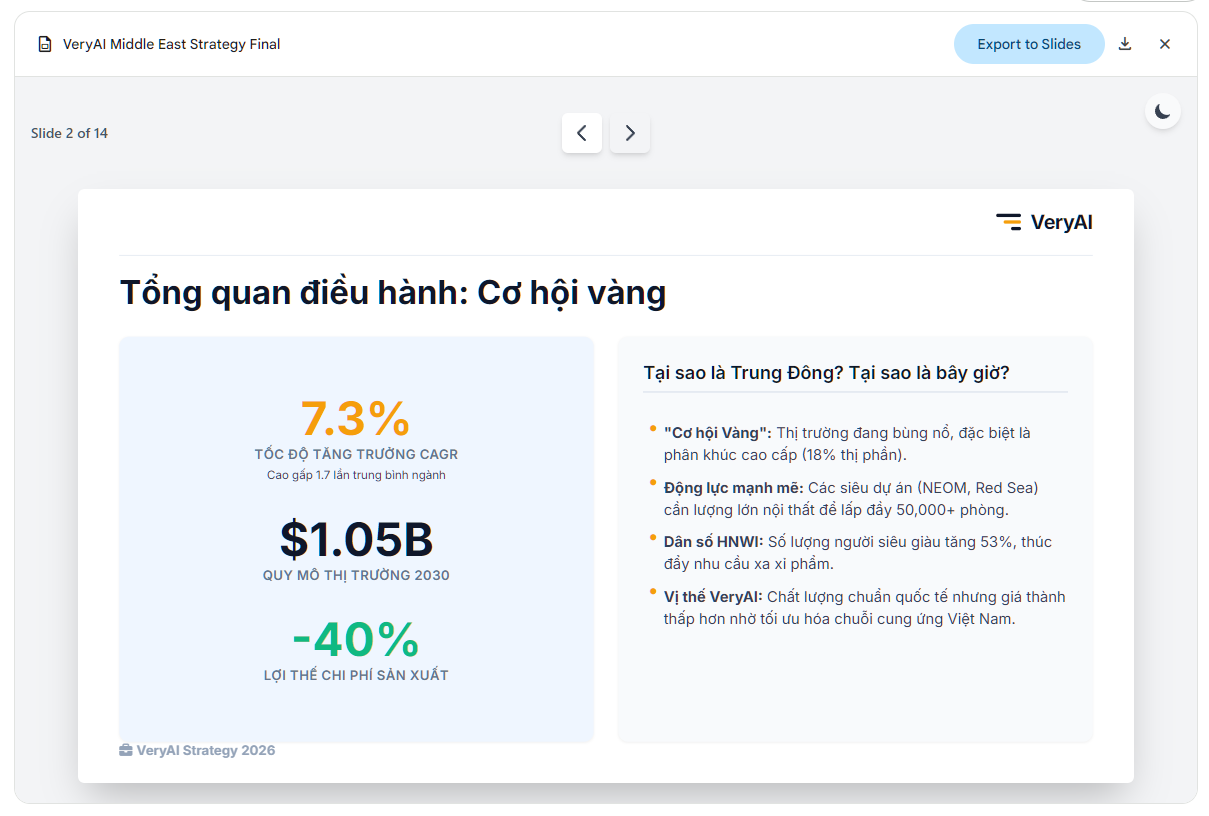
Ask Gemini to create the content exactly as described in step 2 and the design as in step 3. Now, go make yourself a cup of tea and wait a few minutes while Gemini works.
Step 5: Once the slide deck is created, you'll see it in the Canvas. Browse through the slides and ask Gemini for adjustments if needed. Finally, when you're satisfied, click the Export to Slides button.
Bước 6: Sau khi Gemini export xong bạn sẽ thấy thông báo và nút Open Slides để tiếp tục chỉnh sửa trong Google Slides.
Click that button to switch to Google Slides and use its dedicated slide features, especially the AI and Banana Pro features, which are great. Alternatively, you can download Google Slides as PowerPoint to your computer to continue editing and adding the beautiful presentation features of PowerPoint.
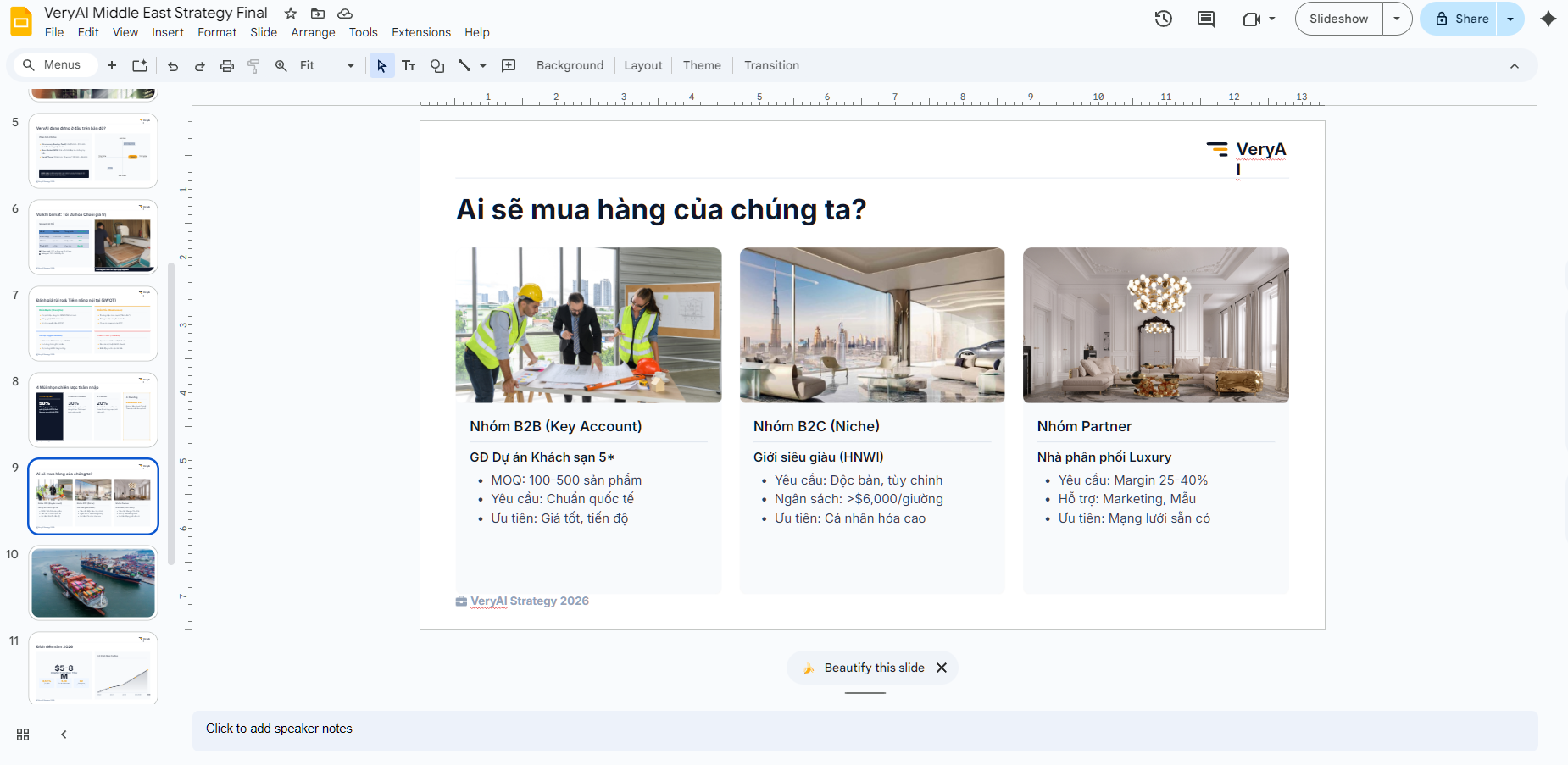
In my example, with a not-too-complex template design, Gemini performed quite well, quickly generating a presentation file that met about 70-80% of my standard template requirements. Please note that Gemini cannot create the exact logo or image as in the provided template; you will need to replace it with your official logo and image when editing in Google Slides or PowerPoint.
This method is fast, but because Gemini creates the presentation using HTML code and then converts it to slides, you'll find that if you edit it in Google Slides or PowerPoint, some effects and images are lost, and the text and boxes become fragmented, which is quite annoying and messy. If you really want to combine Gemini with your template to create a truly "standard" slide presentation, then continue reading Part 2 - Combining Gemini with App Scripts to Create Template-Based Presentations.